How to Choose the Right Storage Upgrade When NVMe Isn't the Answer
Introduction
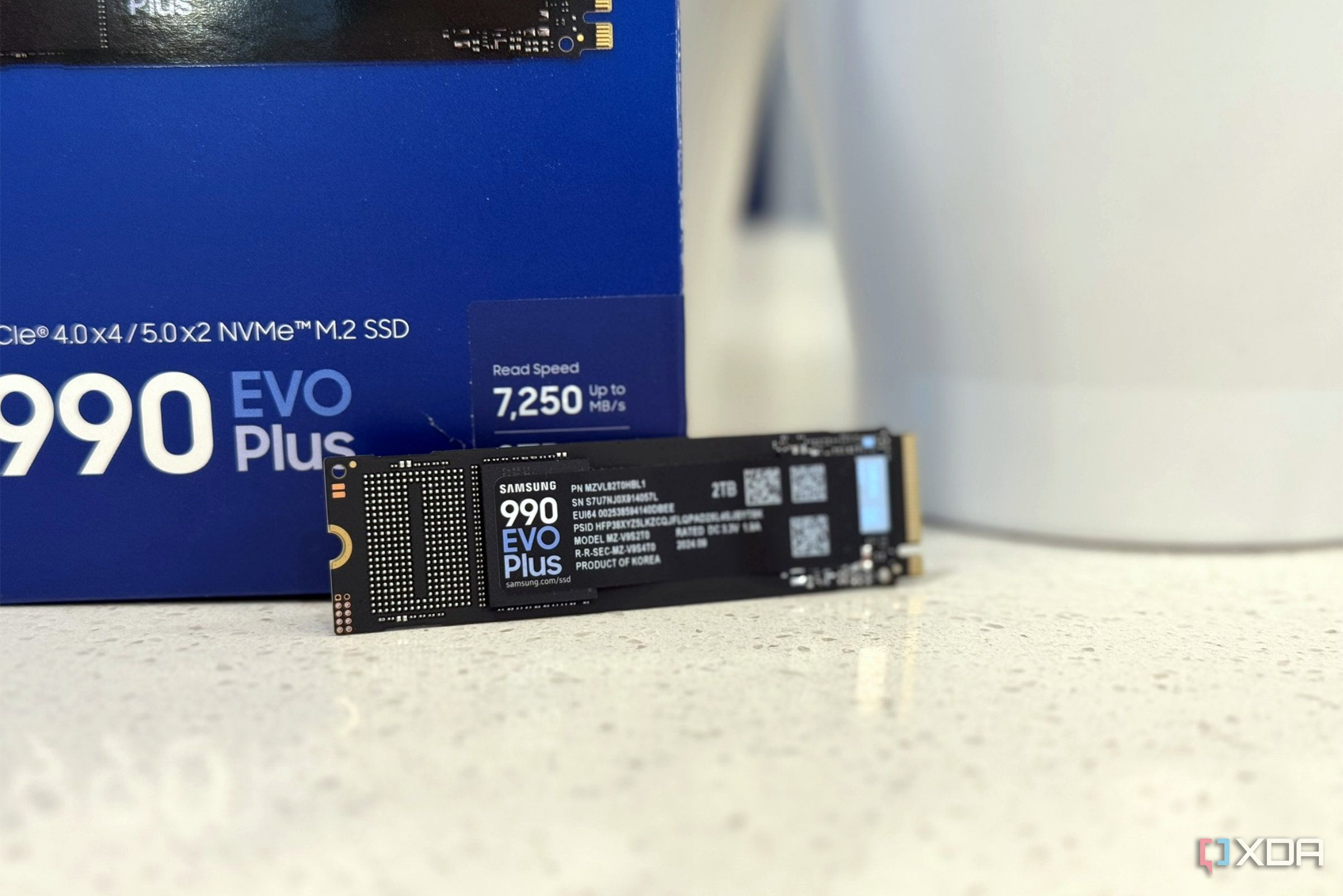
When your computer starts running low on storage, the natural impulse is to grab the fastest NVMe SSD on the market. After all, NVMe drives offer blazing speeds—Gen3 reaches 3500 MB/s, Gen4 peaks at 7000 MB/s, and Gen5 doubles that to 14000 MB/s. But speed alone doesn't dictate the best upgrade. In everyday use, the gap between Gen4 and Gen5 is often negligible, and the cost-per-gigabyte of NVMe can be significantly higher than alternatives like SATA SSDs. This guide will help you evaluate your real needs, compare options, and choose a storage upgrade that balances performance, capacity, and budget—without automatically defaulting to the latest NVMe.
What You Need
- Your current system specifications – motherboard model, available slots (M.2, SATA, PCIe), and current storage details.
- Usage profile – what you do with your PC (gaming, content creation, office work, etc.).
- Budget – total amount you’re willing to spend on the upgrade.
- Capacity requirements – how much additional storage you need (e.g., 1TB, 2TB, etc.).
- Benchmarking tools (optional) – CrystalDiskMark or similar to test current speeds.
Step-by-Step Guide
Step 1: Assess Your Actual Storage Needs
Begin by determining why you need more space. Are you running out of room for games? Storing large video files? Or just want a faster boot drive? Be honest about your usage patterns. If you’re a gamer, many modern titles load quickly even on SATA SSDs, with load times differing by only a few seconds compared to NVMe. For content creators handling 4K/8K footage, sequential write speeds matter—but even then, a high-capacity Gen3 or Gen4 NVMe might be overkill. Write down your top three storage-intensive tasks and their typical file sizes. This will guide your capacity and speed decisions.
Step 2: Understand Real-World Performance Differences
NVMe Gen5 drives offer theoretical speeds up to 14,000 MB/s, but in everyday scenarios (opening apps, booting, loading levels), the difference from Gen4 (7,000 MB/s) is often under 5%. Similarly, switching from a SATA SSD (about 550 MB/s) to NVMe might cut boot times by a few seconds but won't transform your experience unless you’re moving huge files constantly. Focus on the tasks you perform daily – if you rarely copy multi-gigabyte datasets, the speed premium of NVMe is wasted. Check benchmarks for your specific use cases to see if you'd actually notice the extra speed.
Step 3: Compare Cost Per Gigabyte
Price is a major factor. As of now, SATA SSDs often cost 20–40% less per terabyte than NVMe drives, especially at higher capacities (2TB, 4TB). For example, a 2TB SATA SSD may cost $100 while a comparable NVMe Gen4 drive costs $150. Over multiple terabytes, that difference adds up. Calculate the cost per gigabyte for each option (price / capacity) and compare. Also consider that NVMe drives require M.2 slots, which are limited on many motherboards. If you already have one NVMe drive and need more storage, adding a SATA SSD can be much cheaper and simpler.
Step 4: Check Your Motherboard Compatibility
Before buying, verify how many M.2 slots your motherboard supports and whether they share bandwidth with SATA ports or PCIe lanes. Older boards might only have one NVMe-capable slot, and using a second might disable some SATA ports. Check the manual or manufacturer’s website. If you have free SATA ports (and a 2.5-inch drive bay), a SATA SSD is a hassle-free addition. If you want NVMe, ensure the slot supports the generation you buy (e.g., Gen5 NVMe may run at Gen4 speeds if the slot is Gen4).
Step 5: Evaluate Alternative Form Factors and Interfaces
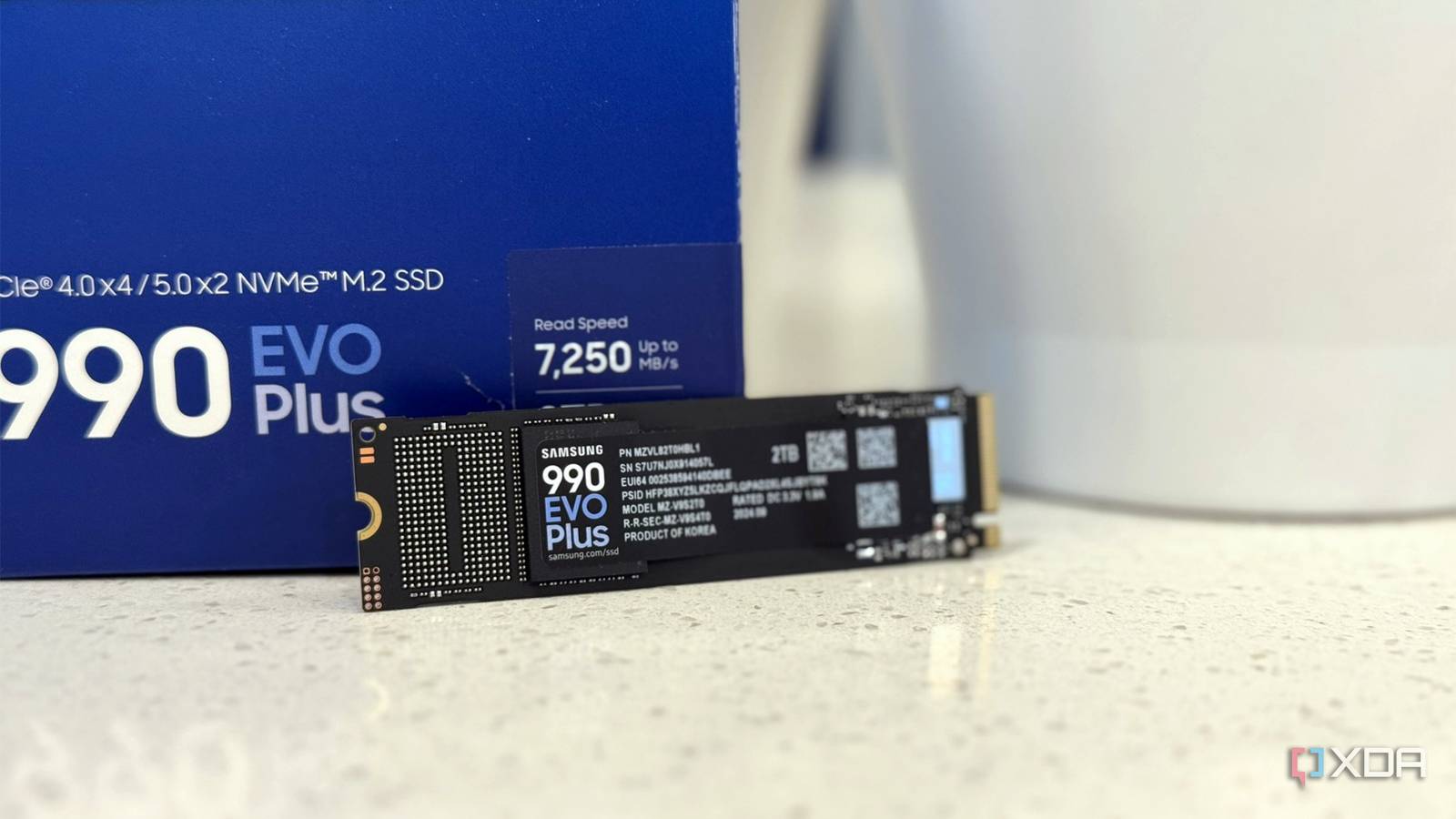
Aside from standard M.2 NVMe and 2.5-inch SATA, consider M.2 SATA SSDs – they use the same M.2 slot but run at SATA speeds (550 MB/s) and are often cheaper than NVMe. Also look at U.2 drives (mostly enterprise) or add-in PCIe cards that host multiple M.2 drives. For pure bulk storage, even a large hard drive (HDD) might suffice for media libraries. Weigh the convenience of a single large drive versus multiple smaller ones.
Step 6: Make Your Decision Based on a Weighted Score
Create a simple table ranking each option (SATA SSD, NVMe Gen3, Gen4, Gen5, HDD) on speed, cost per GB, capacity, and compatibility with your system. Assign weights (e.g., speed 20%, cost 40%, capacity 30%, compatibility 10%) based on your priorities. For most users, the sweet spot is a Gen3 NVMe or a SATA SSD with high capacity. If you have a budget and need fast sequential transfers, Gen4 NVMe is reasonable. Avoid Gen5 unless you have workloads that can use it (e.g., professional video editing with multiple streams) and a motherboard that supports it.
Tips for a Successful Upgrade
- Always verify compatibility – before purchasing, double-check that your motherboard has the correct slot type (M.2 key B or M, or SATA port) and that your power supply has enough SATA power connectors if adding a 2.5-inch drive.
- Don't overlook cooling – NVMe Gen4 and Gen5 drives can get hot under sustained loads, leading to thermal throttling. Ensure your case has adequate airflow or consider a heatsink. SATA SSDs run cooler and rarely need extra cooling.
- Plan for future upgrades – if you think you may need even more storage in a year, consider getting a larger SATA SSD now rather than a smaller NVMe, because you can always add another SATA drive later without using up precious M.2 slots.
- Back up before upgrading – any installation of a new drive involves risk. Clone your existing drive to the new one using software like Macrium Reflect, or do a fresh install. Keep your original drive untouched until you confirm the new one works.
- Monitor performance after installation – use benchmarking software to compare before and after speeds. If you notice the drive is slower than expected, check if it's running in the correct slot (e.g., Gen5 drive in a Gen3 slot will limit speeds).