10 Hidden Gems of PowerToys FancyZones That Will Transform Your Window Management
Windows 11 does a decent job with window snapping, but let’s be real—its built-in tools can feel rigid, especially when you juggle multiple apps, monitors, or complex workflows. That’s where PowerToys steps in with FancyZones, a feature that quietly revolutionizes how you organize your desktop. Whether you’re a power user or just someone tired of manually resizing windows, these ten insights will show you why once you try it, you’ll never look back.
1. What Is FancyZones and Why Does It Matter?
FancyZones is a window manager utility within Microsoft PowerToys that lets you create custom snap layouts far beyond Windows 11’s preset grid. Instead of being limited to a few standard options, you can design zones of any size and shape, then snap windows into them with a simple drag. This is a game-changer for productivity because you can tailor your desktop to match your specific tasks—think coding on the left, browser on the top right, and chat on the bottom right. The flexibility transforms a cluttered screen into an organized command center, reducing time spent resizing and aligning windows.
2. How to Enable FancyZones in PowerToys
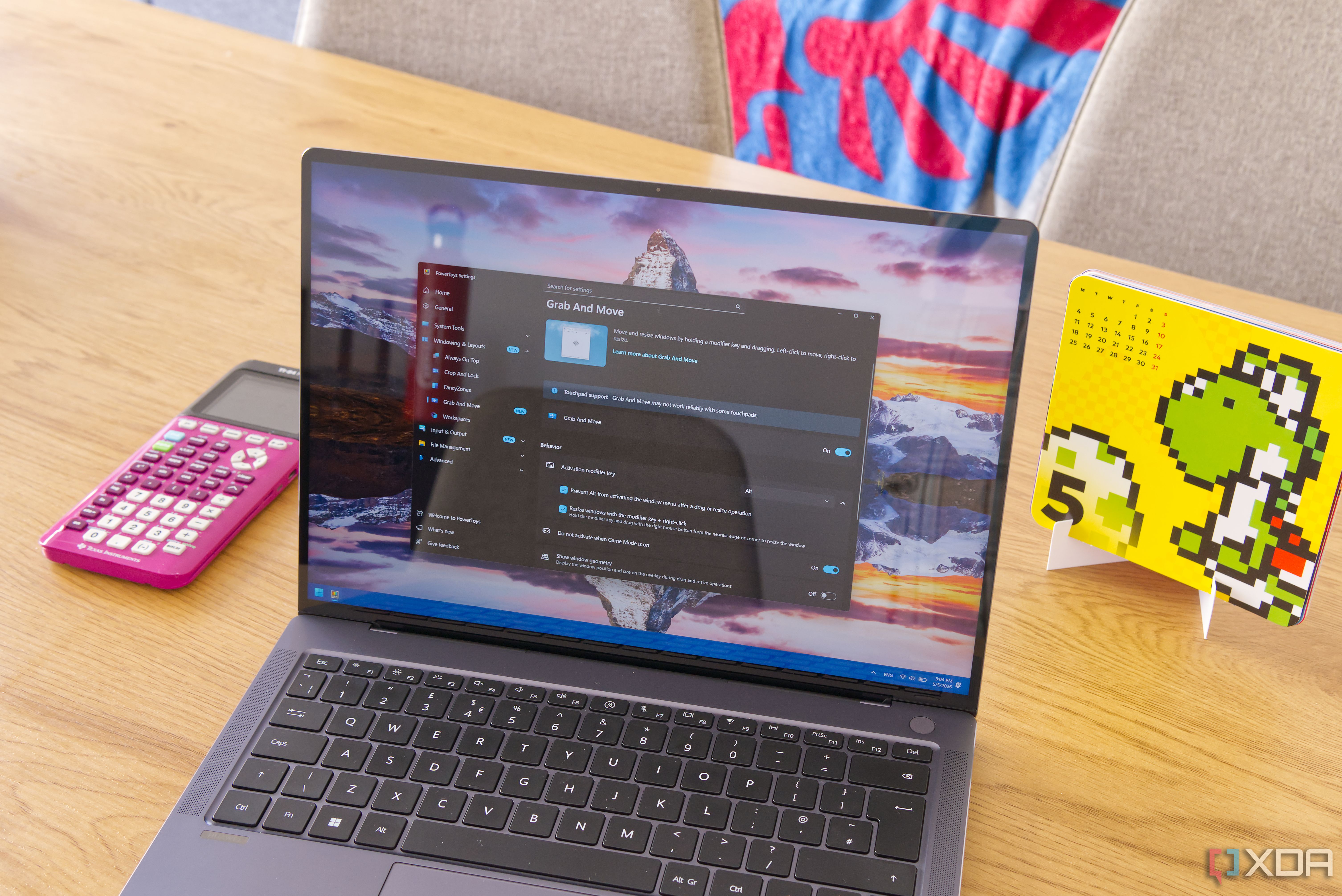
Getting started is straightforward. First, download PowerToys from the official Microsoft Store or GitHub. Once installed, open the PowerToys Settings dashboard, navigate to the FancyZones section, and toggle the switch to enable it. You’ll then see an option to launch the editor by holding Shift while right-clicking any window—or by using a dedicated keyboard shortcut. After activation, you can immediately start using the default layouts or customize your own. The setup takes less than a minute, but the payoff in window management efficiency lasts forever.
3. Creating Custom Zone Layouts
The heart of FancyZones lies in its layout editor. Click the “Launch Layout Editor” button in PowerToys Settings, and you’ll be welcomed with a blank canvas. Here, you can draw zones by holding the mouse and dragging rectangles onto a virtual representation of your screen. You can set precise dimensions, snap zones to each other, and even replicate layouts across monitors. For example, create a wide zone for a document editor, a narrow strip for a file explorer, and a small square for a chat app. These custom zones can be saved and loaded anytime, making it easy to switch between work modes.
4. The Shift+Drag Shortcut You’ll Use Daily
FancyZones works with a simple drag-and-drop mechanism, but the real magic happens when you hold down the Shift key while moving a window. By default, pressing Shift during a drag shows all the zones on the screen, allowing you to drop the window exactly where you want. Without Shift, standard Windows snapping takes precedence. This clever design means you can seamlessly switch between PowerToys zones and native snapping, preserving your existing muscle memory. Once you get used to it, you’ll find yourself instinctively holding Shift to grab a precise spot on your desktop.
5. Quickly Switching Between Zone Sets
One of the most underrated features is the ability to swap zone layouts on the fly. In FancyZones settings, you can assign keyboard shortcuts to load different zone presets. For instance, you might have a “Coding” layout with a large left zone and two right stacks, and a “Writing” layout with a wide center panel. Press Ctrl+Alt+1 for one, Ctrl+Alt+2 for another—instant reconfiguration without closing any windows. This flexibility is ideal for people with dynamic workflows, as you can adapt your screen arrangement to changing tasks within seconds.
6. Multi-Monitor Support That Just Works
FancyZones handles multiple monitors gracefully. You can create unique zone layouts for each display, or copy one layout across all screens. The editor detects all your monitors and lets you assign a different zone set per monitor. When you drag a window across displays, FancyZones will snap it to the zones on the target screen automatically. This is a lifesaver for users with ultra-wide or mismatched monitors, because windows stay organized no matter where you put them. No more frantic resizing when moving a window from your laptop screen to an external monitor.
7. Zone Highlighting and Visual Feedback
When you drag a window over a zone, FancyZones provides visual feedback—the zone lights up or displays a colored border to show where the window will land. This instant preview reduces guesswork and ensures you drop windows exactly where you intend. You can customize the highlight color and opacity in the settings, making it easier to see against different wallpapers. The highlighting is especially useful in complex layouts with many small zones, as it clearly indicates which zone is active. This subtle detail greatly improves the user experience, especially for newcomers.
8. Customizable Snapping Behavior for Every Need
Under the hood, FancyZones offers a wealth of snapping options. You can choose whether windows snap immediately on drop or only after holding Shift, decide if snapped windows should fill the zone automatically, and set whether holding the Ctrl key overrides the snapping behavior. These settings let you fine-tune the tool to your personal style—some like aggressive snapping, others prefer a lighter touch. For example, enable “Override Windows Snap” to have every drag use FancyZones instead of the default Microsoft layout, or disable it to keep both systems working harmoniously.
9. How FancyZones Complements Windows 11 Snap Layouts
Windows 11 brought “Snap Layouts” that appear when you hover over the maximize button, offering a few preset arrangements. FancyZones doesn’t replace this—it enhances it. You can keep using Microsoft’s layouts for quick arrangements while relying on FancyZones for complex, custom setups. There’s no conflict because you control when each system activates via the Shift key. This synergy means you get the best of both worlds: the simplicity of native snapping for casual tasks and the power of custom zones for intensive multitasking.
10. Why You’ll Never Want to Go Back
After using FancyZones for a few days, the difference becomes stark. The hours you used to waste dragging, resizing, and aligning windows vanish. Your desktop feels more organized, and switching between tasks becomes effortless. The “one thing you didn’t know you needed” turns into an indispensable part of your daily rhythm. PowerToys quietly added a feature that redefines window management, and once you’ve experienced the freedom of custom zones, standard snapping feels primitive. Give it a try—you might just find yourself wondering how you ever worked without it.
In the end, PowerToys FancyZones proves that the best productivity tools are the ones that stay out of your way while giving you total control. Whether you’re a developer, designer, or casual multitasker, mastering these ten aspects will unlock a more efficient workflow. Start with basic layouts, experiment with custom zones, and soon you’ll have a desktop that adapts to you, not the other way around. Ready to level up your window management? It’s just a download away.