A Complete Walkthrough for Updating Your AirPods Max 2 Firmware
Overview
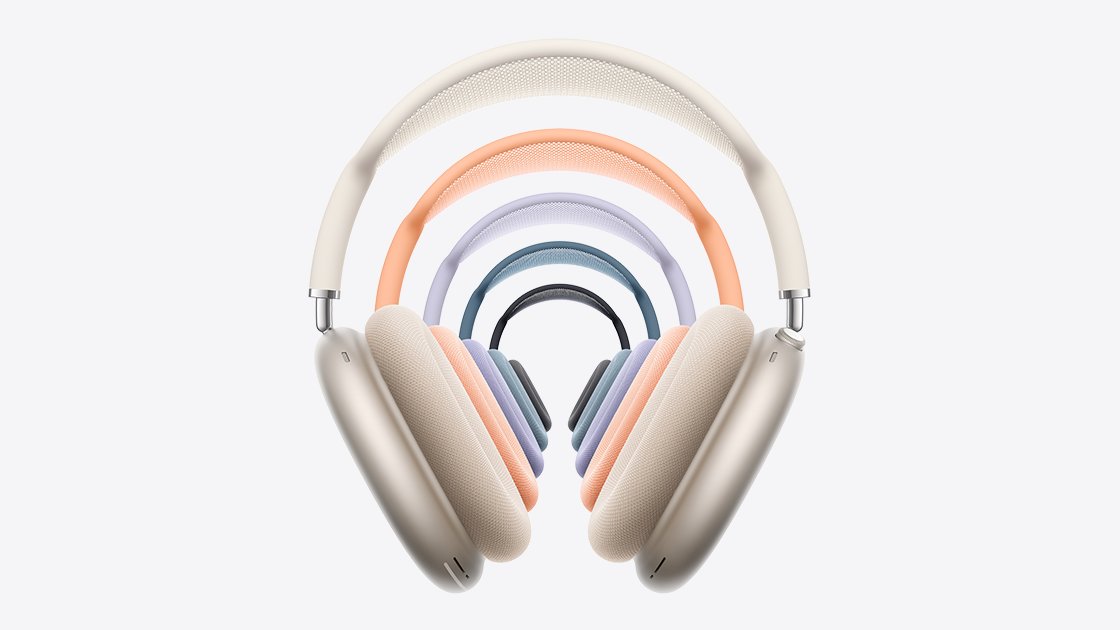
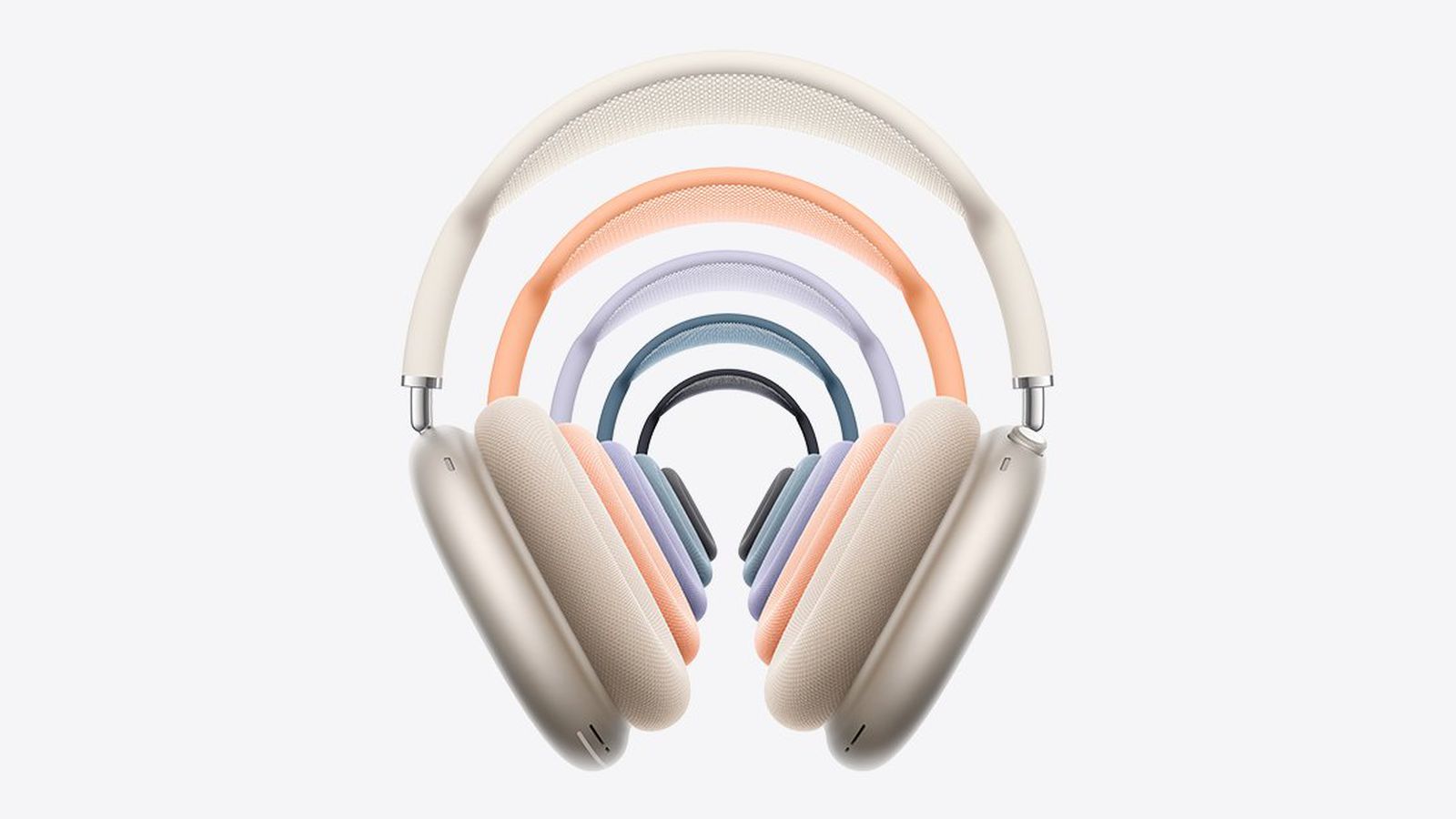
Apple periodically releases firmware updates for its audio devices, including the AirPods Max 2 with the H2 chip. The latest firmware version, 8E258, succeeds the earlier 8E251 build that rolled out just before the headphones launched. Although Apple typically provides only vague release notes—citing general bug fixes and performance improvements—this update is significant because it supports several advanced features enabled by the H2 chip: Live Translation, Adaptive Audio, Loud Sound Reduction, and Voice Isolation. This guide will walk you through everything you need to know to ensure your AirPods Max 2 are running the latest firmware, including prerequisites, step-by-step instructions, and common pitfalls to avoid.
Prerequisites
Hardware and Software Requirements
- AirPods Max 2 with H2 chip. (The original AirPods Max with H1 chip cannot run this firmware.)
- An iPhone, iPad, or Mac that supports Bluetooth and Wi-Fi. For best results, use a device running the latest version of iOS, iPadOS, or macOS.
- USB-C charging cable (provided with the AirPods Max 2).
- A stable Wi-Fi connection on the paired Apple device.
What You Need to Know Before Starting
- The update process is automatic and background-driven; you cannot manually initiate a firmware download. Instead, you set up the conditions and let the system handle it.
- Your AirPods Max 2 must be connected via Bluetooth to the Apple device and within range (about 30 feet or 10 meters).
- They must also be connected to power using the USB-C cable. Without power, the update will not proceed.
- The entire process takes at least 30 minutes from the time you connect power. Be patient—do not interrupt the pairing or move out of range.
Step-by-Step Instructions
Step 1: Connect Your AirPods Max 2 to Power
Plug the USB-C end of the cable into the USB-C port on the right ear cup of your AirPods Max 2. Connect the other end to a USB-C power adapter (like the one for your iPhone or iPad) or directly to a computer’s USB-C port. The headphones will begin charging, indicated by an amber or green light near the port. Important: Do not disconnect the cable until the update is complete.
Step 2: Ensure Bluetooth Pairing
Make sure your AirPods Max 2 are paired with your iPhone, iPad, or Mac. If they are already paired, confirm they are connected by checking the Bluetooth settings—look for “Connected” under the device name. If not, open the Bluetooth menu and tap “AirPods Max 2” to connect.
Step 3: Connect Your Apple Device to Wi-Fi
On the same Apple device you are using, connect to a Wi-Fi network. A strong, stable connection is essential because the firmware is downloaded over the internet. Avoid using cellular data or a weak hotspot.
Step 4: Place the AirPods Max 2 in Bluetooth Range
Keep your AirPods Max 2 within Bluetooth range of the Apple device—ideally within the same room. Do not toggle Bluetooth off or disconnect the headphones manually. The update will begin automatically once all conditions are met.
Step 5: Wait at Least 30 Minutes
The firmware update happens in the background. You do not need to do anything during this time. However, avoid listening to audio or using the AirPods Max 2 for calls—they should remain idle and charging. After 30 minutes, proceed to check the firmware version.
Step 6: Check the Firmware Version
Reconnect the AirPods Max 2 to your Apple device if they have been disconnected (though they should stay paired). Then follow these steps to verify the update:
- On iPhone or iPad: Go to Settings > Bluetooth. Tap the i icon next to your AirPods Max 2. Look for “Firmware Version” – it should read 8E258.
- On Mac: Click the Apple menu > System Preferences (or System Settings on macOS Ventura or later) > Bluetooth. Click Options next to your AirPods Max 2. The firmware version will be listed.
If the version shows 8E258, the update was successful. If it still shows 8E251 or an older version, proceed to the troubleshooting section below.
Step 7 (Troubleshooting): Restart the AirPods Max 2
If the firmware did not update, restart your AirPods Max 2 by placing them back in the Smart Case, waiting 10 seconds, then taking them out again. Reconnect them to power and repeat Steps 1–6. In some cases, restarting the paired Apple device can also help.
Common Mistakes
Mistake 1: Not Connecting to Power
The update will not proceed if the AirPods Max 2 are not receiving power via USB-C. Many users assume Bluetooth and Wi-Fi are enough, but the firmware download requires the device to be in a charging state. Always plug them in.
Mistake 2: Moving Out of Range
The AirPods Max 2 must remain within Bluetooth range of the Apple device throughout the entire 30-minute window. If you walk away or take the headphones to another room, the update may pause or fail.
Mistake 3: Using the Headphones During the Update
While there is no explicit prohibition against listening, it’s best to keep the AirPods Max 2 idle. Audio playback can interfere with background processes, and actively using the microphone (e.g., for calls) might abort the update.
Mistake 4: Ignoring Wi-Fi Stability
A weak or intermittent Wi-Fi connection can cause the download to time out. Ensure your Apple device is connected to a reliable network. If you have a dual-band router, connect to the 5 GHz band for better performance.
Mistake 5: Checking Too Early
Some users check the firmware version after only 5–10 minutes. Apple specifically states that you should wait at least 30 minutes. Checking too early may lead you to believe the update hasn’t started when it simply hasn’t finished yet.
Summary
The AirPods Max 2 firmware version 8E258 brings under-the-hood improvements and support for H2 chip features like Live Translation and Adaptive Audio. To update, connect your headphones to power via USB-C, keep them paired via Bluetooth to an Apple device that is connected to Wi-Fi, and wait at least 30 minutes. After verifying the version, you can enjoy the latest enhancements. If the update does not occur, restart the AirPods Max 2 and try again. With this guide, you can ensure your premium over-ear headphones are always running the most current firmware.